How it works

One installation per university. Everyone signs in to the same address.

What they see depends on their role: a student sees their own courses, fees and requests; a lecturer sees their teaching; an office sees its own workspace. Below: the journey, the three sizes it comes in, how it is set up, what it connects to, the walkthrough, and how it is licensed.

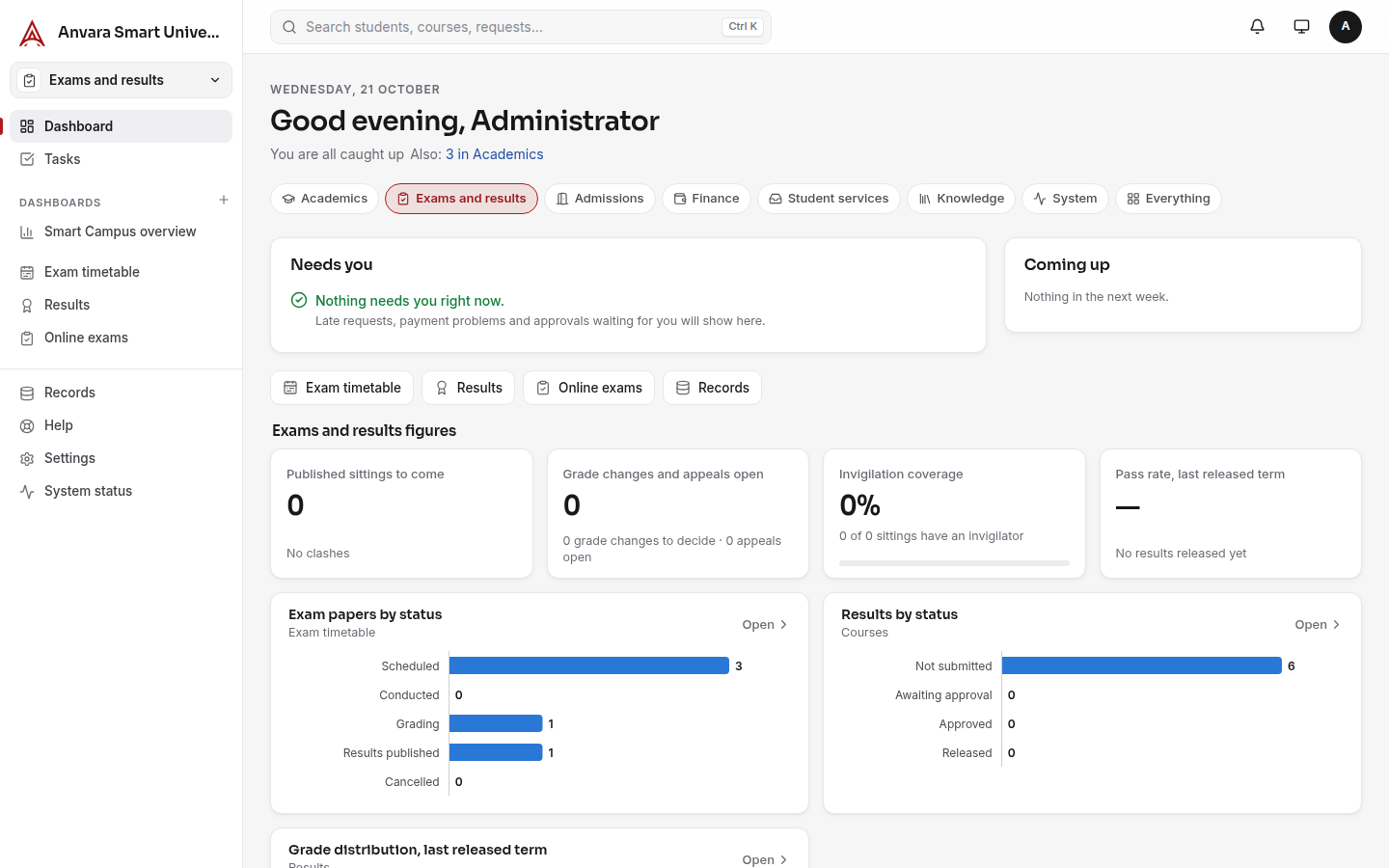
The Exams and results workspace dashboard for an administrator: Needs you, Coming up, quick links and figures such as published sittings, grade changes open and invigilation coverage
An administrator switching between workspaces, on test data
The journey

Three people, one system

A student

  1. Applies on the applicant portal: documents, the application fee, the admission test, an offer. The applicant login becomes the student login on enrolment.
  2. Signs in with the university account and lands on a home page that says what needs them, what is coming up and what is in progress.
  3. Sends requests: a transcript, a letter, a correction, a waiver, a withdrawal. Each gets a reference, an office, an owner and a working-day deadline.
  4. Pays fees and sees billed, approved aid, pending aid and net payable, with the instalment schedule.
  5. Registers: windows, seats, waitlists in order, a blocked prerequisite explained in a sentence, "ask for an exception" from the rule itself.
  6. Sees results once they are approved and released, and appeals within the window.
  7. Asks Help and gets an answer that cites the approved page, or is handed to a person.

An office

  1. Starts on its workspace: Needs you, Coming up, and the office's figures from real records.
  2. Works the desk: requests routed by type, evidence attached, sent back for correction, approved. Important changes need a second person, and the requester never approves their own.
  3. Finance sees every payment by state, imports gateway and bank settlement files, and gives each exception an owner.
  4. The Registrar decides overrides and transfer credit line by line, with a reason, and keeps the degree requirements.
  5. The Controller of Examinations publishes the timetable, fixes clashes, approves and releases results; grade changes keep the old value and the approver.
  6. Everything is traceable: the audit log and each record's timeline say who did what and when.

An administrator

  1. Installs with Docker on an office machine or a cloud server and gives it a permanent HTTPS address.
  2. Follows Settings → Setup: the checklist below, each step marked Done or To do from the data.
  3. Shapes it without code: plugins and their settings, roles, office routing, fee rules, term dates, languages, sign-in, flows.
  4. Watches System status: database, connections and background jobs, each Working, Silent or Failing, with an alert when one changes.
  5. Backs up daily and runs the restore drill, which restores into a scratch database and compares every table.
Three sizes

Pilot, Standard, Full

A profile is the set of areas that are on; everything else stays installed but off. Start small: the profile can be changed any time under Settings → Setup, and nothing is deleted when an area goes off.

Pilot the default

  • Students, courses and programmes
  • Documents
  • Fees and payments
  • Requests and holds
  • Help and policies
  • Canvas and records system

Standard Pilot plus

  • Course registration
  • Degree plan and transfer credit
  • Results
  • Exam timetable
  • Admissions

Full Standard plus

  • Classroom
  • Online exams
  • Subject trends
  • Faculty workload
  • Research office
  • AI assistance
Setup

The first-time checklist

Settings → Setup shows the same steps with Done or To do read from your data and a button to the exact form. The product handbook has the detail for each.

  1. Install the server with Docker and set its permanent HTTPS address.
  2. Sign in as the first admin, change the password, add a second administrator.
  3. Branding and region: name, logo, currency, country, time zone, language, number and date format.
  4. Languages: check the built-in wording for the words your university uses; correct any of it.
  5. Install the Smart University solution: 12 objects, 13 roles, the service-desk form, 8 automations and a dashboard. Sample data off for a live system.
  6. Choose a profile and any extra areas, one by one.
  7. Roles for your offices: Registrar, Accounts, Controller of Examinations, service desk; what each sees and approves.
  8. Office routing: which office handles each request type and in how many working days; the person responsible per office; weekends and holidays.
  9. Fee rules: tuition per credit, fixed term fees, days to pay, refund windows, the payment gateway, instalment plans, application fees.
  10. Terms and deadlines: advising, registration, add/drop and withdrawal periods, per intake where needed.
  11. Programmes and degree requirements per catalogue year; results components and the appeal window.
  12. Import people and courses from CSV files, or from Canvas and the records system, with a dry run first.
  13. Accounts and sign-in: Google, OpenID Connect or the university portal; sign-up by email domain; two-factor required per role.
  14. Email and other channels: Resend or SMTP; Telegram; SMS.
  15. AI features, if wanted: an API key per plugin; every AI switch is off by default.
  16. Go-live checks: System status green, an uptime monitor on the health addresses, a backup, the restore drill, a base snapshot, a sign-in as each role.
Connections

How it connects

Anvara does not have to replace the systems a university already runs. For each connection: what it does and what the university needs to provide.

SystemHow Anvara works with itThe university provides
CanvasCourses, sections, people and enrolments come in; enrolment changes made here and released final grades go back. Every run can be a dry run first.A Canvas address and an account-admin access token
Records systemStudents, programmes, cohorts and status come in; approved official results go out once, retried safely, visible to staff when they fail.The records system's adapter address and token. A built-in mock (test data only) stands in until then
MoodleTwo-way sync of courses, people and enrolments; grades come back.A Moodle site with a web service token
OneRoster, LTI 1.3Roster import from a student information system's OneRoster 1.1 CSV export, with a dry run. External tools (publisher content, virtual labs) open signed in, with grades passed back.The CSV export; each tool's LTI registration details
Single sign-onGoogle (including Google Workspace), any OpenID Connect provider (Microsoft Entra ID, Okta, Keycloak), or a signed sign-in from the university portal. Two-factor sign-in for password accounts, required per role.An account with the provider
PaymentsStudents pay online through Stripe or SSLCommerz (cards, bKash, Nagad and other wallets in Bangladesh). Finance imports gateway or bank settlement files and works through what does not match.A merchant account with the gateway. Money never passes through Anvara
Email, SMS, Telegram, pushNotifications in each person's language, each kind switchable per person.Resend or an SMTP server; an SMS gateway account; a Telegram bot. Push needs nothing
FilesDocuments on any record, with version history and retention rules.Nothing (stored on the server), or Amazon S3-compatible storage or a Google Drive service account
Other systemsREST API keys that act with a role's permissions; incoming and outgoing webhooks from flows.The other system
In the demo

What is simulated, and what needs the university's own accounts

ConnectionIn the demoIn production
Payment gatewaySimulated: the built-in test gateway, labelled on screen, no real money. Its outage modes are part of the demo.Stripe or SSLCommerz with the university's merchant account
Records systemSimulated: the built-in mock, whose every answer says "test data only"The records system's adapter and token
CanvasSimulated or not connected: the screens are shown without a university's CanvasThe university's Canvas address and access token
MoodleA demo Moodle can stand inThe university's Moodle and a web service token
Bank settlement filesSimulated: files written from the demo's own test paymentsThe bank's or gateway's real files
EmailNot configured: notifications stay in the appResend or SMTP on the university's sending domain
Sign-inPasswords for the demo accountsGoogle, OpenID Connect or the portal; two-factor per role
AI featuresOff until an API key is set; the help assistant's search mode works without oneThe university's Anthropic API key, or Anvara's as an add-on
Two-factor sign-in, System status, audit log, backups, snapshots, the restore drillRealReal

The demo's students, staff, courses and payments are made up. See the demo page.

The walkthrough

Thirteen minutes through every area

Walkthrough · 13 min 44 s · recorded on a test server with made-up students. Payments, Canvas and the records system are simulated, and the narration says so as it goes.

Chapters

Where it runs

Three delivery options, the same software

On your servers

Installed with Docker by your IT team with our handbook, on an office machine or your cloud account. A signed licence file is all it needs; it works fully offline and never calls out. No personal data leaves the university.

For public universities with a localisation rule, and IT departments that prefer it.

Hosted by Anvara, dedicated

Your own application server, database, storage, backups, keys and domain, run by Anvara in a region you choose. Nothing is shared with another institution. The licence renews itself; only usage counts are reported, never names.

For most universities, and anyone regulated or large.

Shared hosting, planned

A lower-cost tier for smaller colleges: shared application servers with a separate database per institution. Not available yet; ask us if it is what you need.

For small colleges and trials.

A university can move between the first two later with a backup file; nothing is re-implemented.

Licence

Starter, Campus, Enterprise

A licence is a plan, a number of student seats and a term. The plans map onto the three profiles. Staff, faculty and applicant accounts are never counted; a seat is a student who signed in during the last 30 days.

Starter

Pilot profile

  • Students, courses and programmes
  • Documents
  • Fees and payments
  • Requests and holds
  • Help pages
  • Canvas and records system connection

Pricing on request

Campus

Standard profile · up to 20,000 students

  • Everything in Starter
  • Course registration
  • Degree plan and transfer credit
  • Results and exam timetable
  • Admissions
  • Single sign-on and the API included

Pricing on request

Enterprise

Full profile · unlimited students

  • Everything in Campus
  • Classroom and online exams
  • Subject trends
  • Faculty workload and research office
  • AI assistance included

Pricing on request

Add-onsAI assistance on Anvara's key (or bring your own key at no charge), single sign-on for Starter, API and webhooks, priority support.
TrialWithout a licence the software runs as a 30-day trial on the Pilot profile with 200 seats.
When a licence endsAdministrators see a reminder 30 days before. After the end date there are 30 days of grace. After that students can sign in and read but not change anything; staff and administrators keep working; nothing is ever deleted. A renewed licence, uploaded on one screen, restores everything at once.
GrowingAt 90% of the seats administrators are warned. Over 100%, new students can still sign in for two weeks; existing students and staff are never affected.